Smart ID Detailmarker
An adaptive detail marker that splits structured reference IDs into one to three fields.
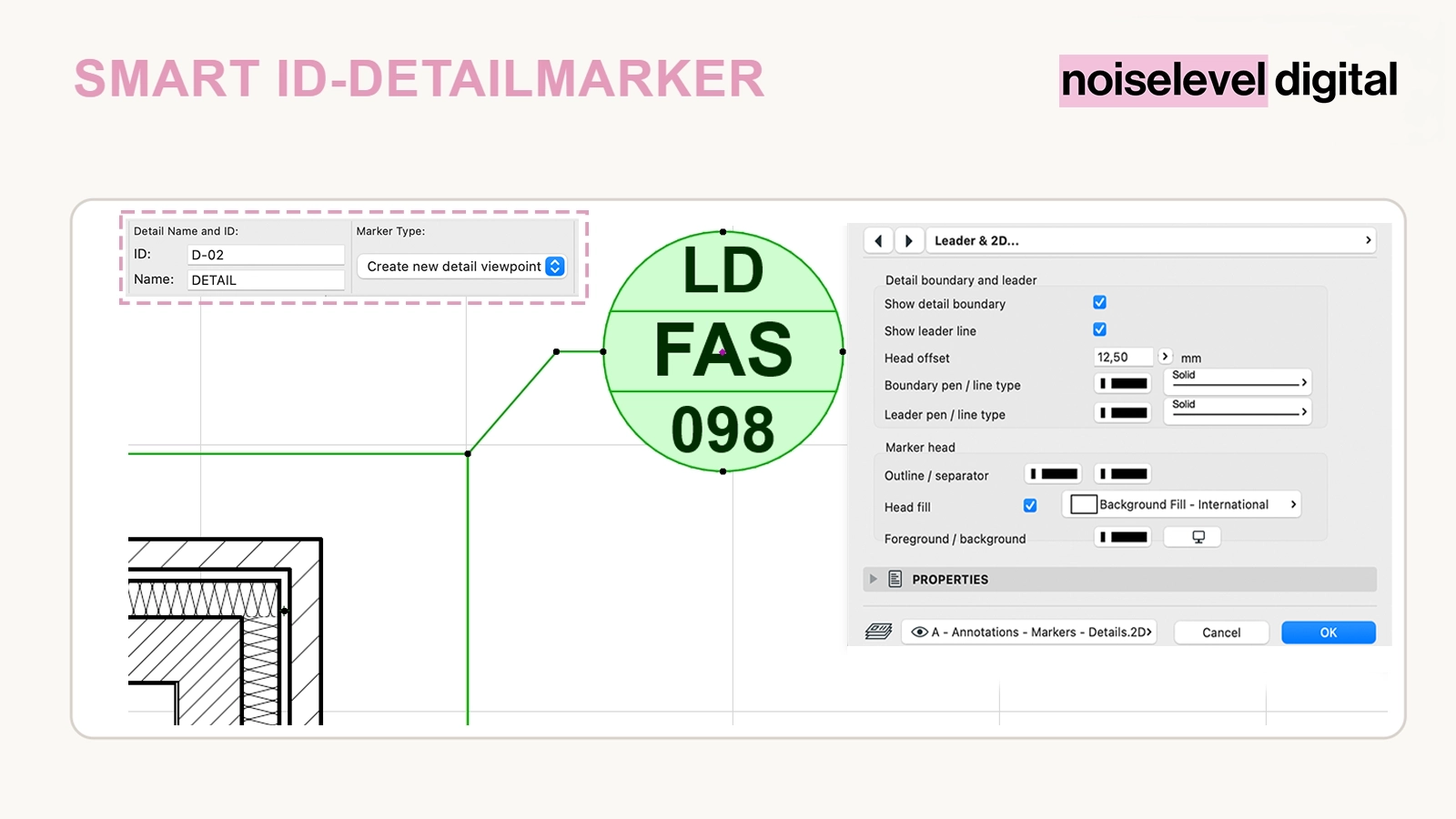
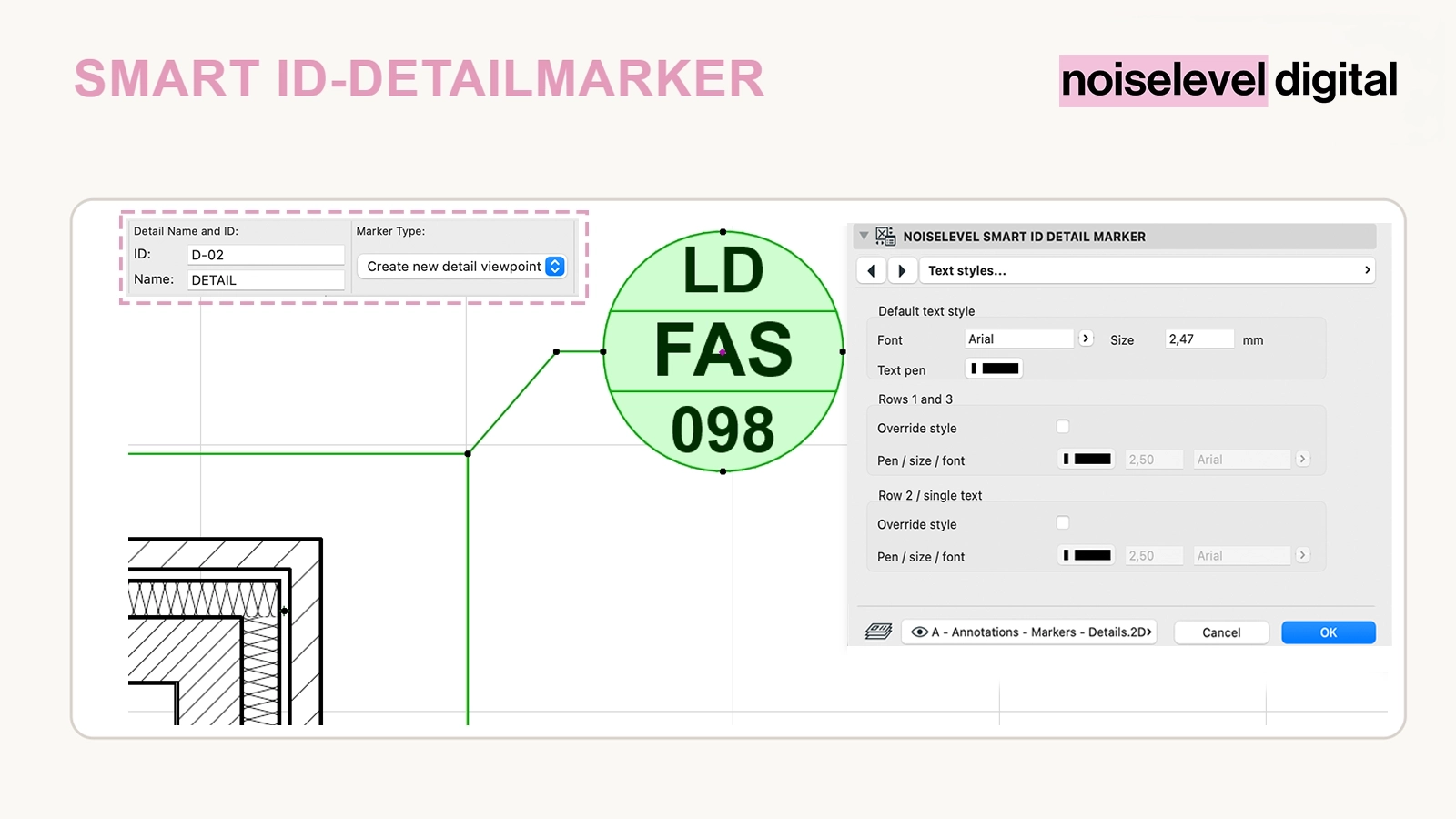
Turn the reference ID into a marker system
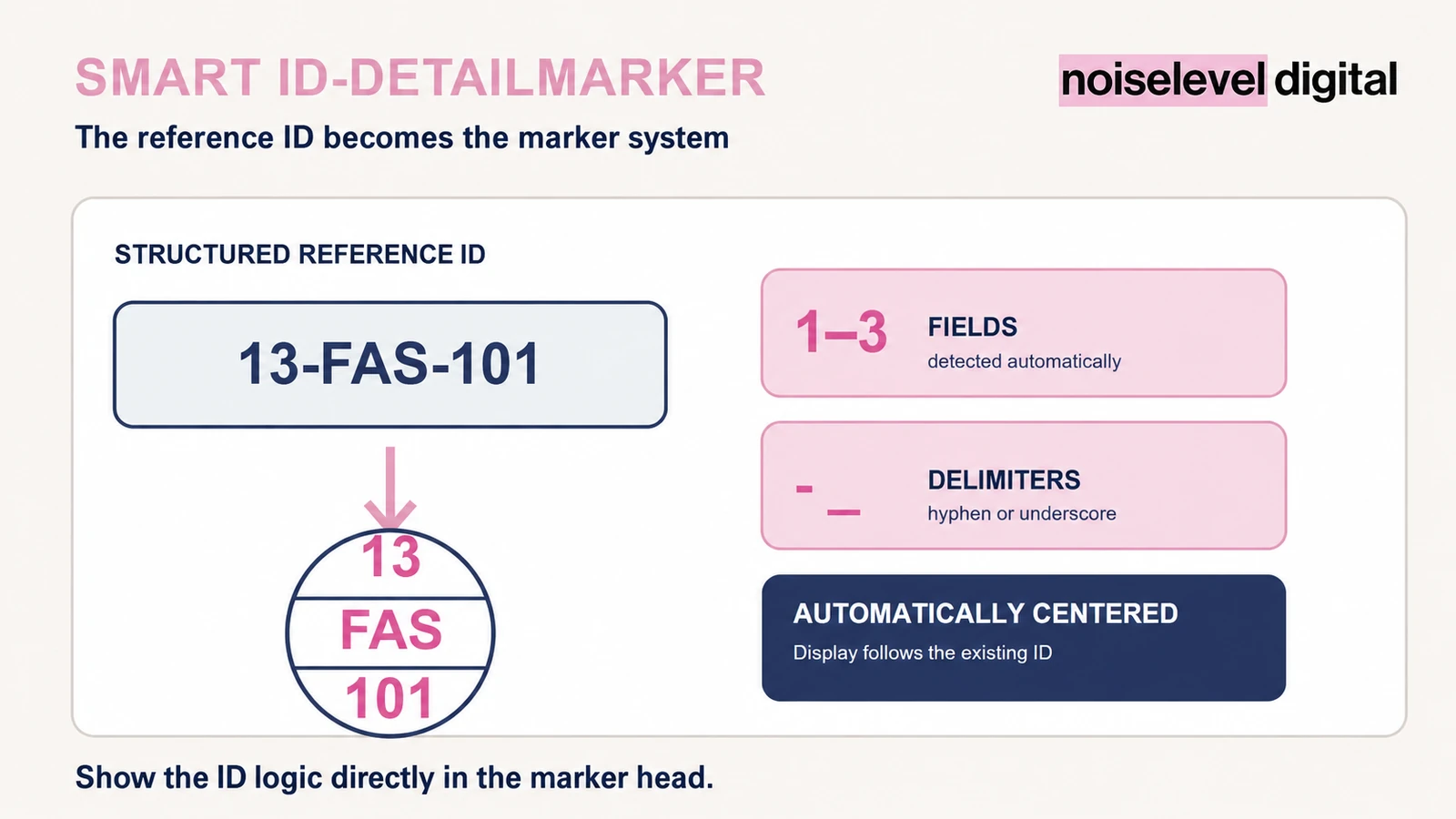
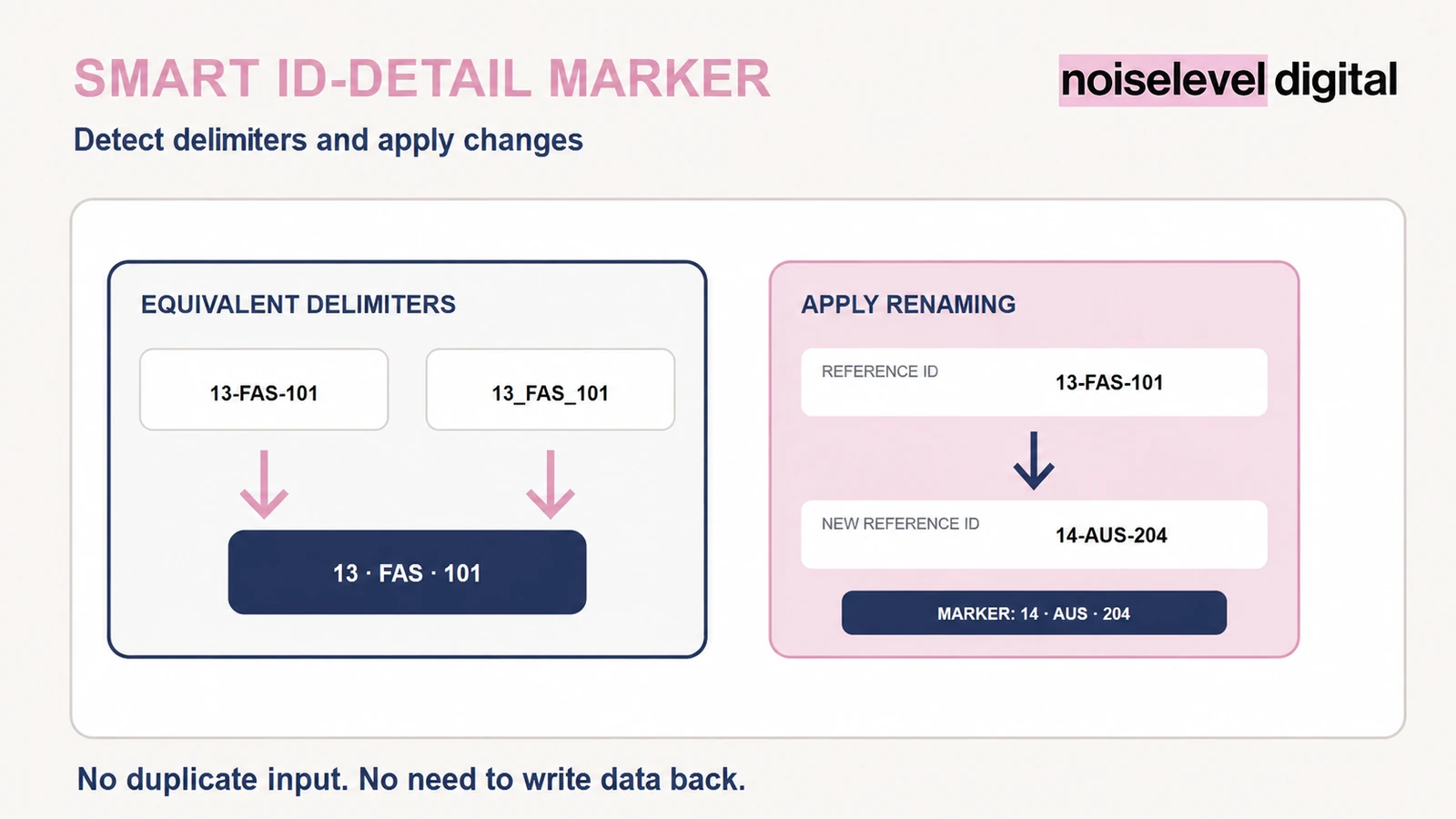
Smart ID Detailmarker uses only the reference ID of the linked detail view. Hyphens and underscores act as separators. The marker automatically detects the number of components and adapts its display, making an existing identification scheme directly visible in the marker head.
Included
- automatic use of the reference ID
- splitting at hyphens or underscores
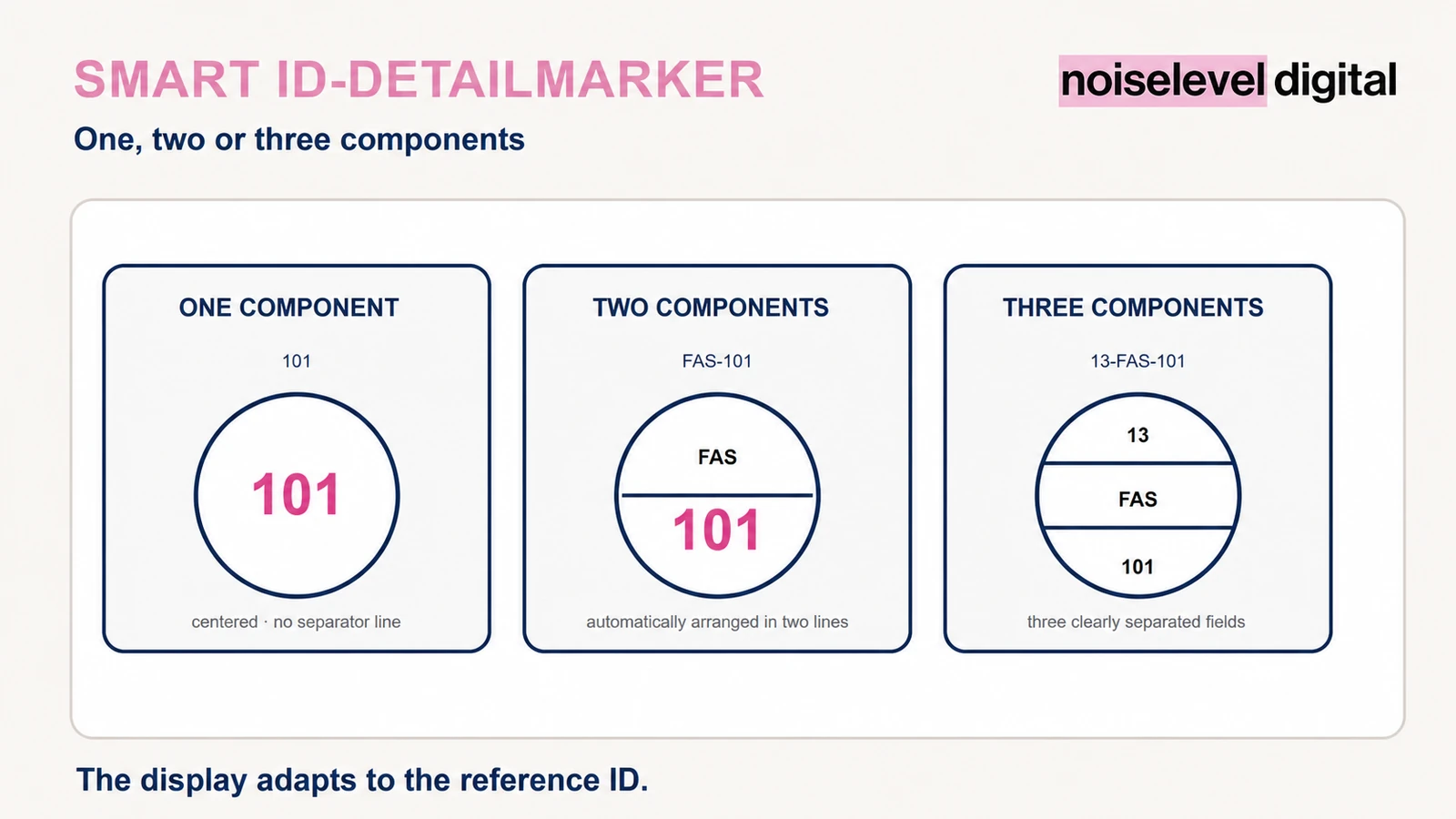
- adaptive display with one, two or three fields
- automatic centring of detected content
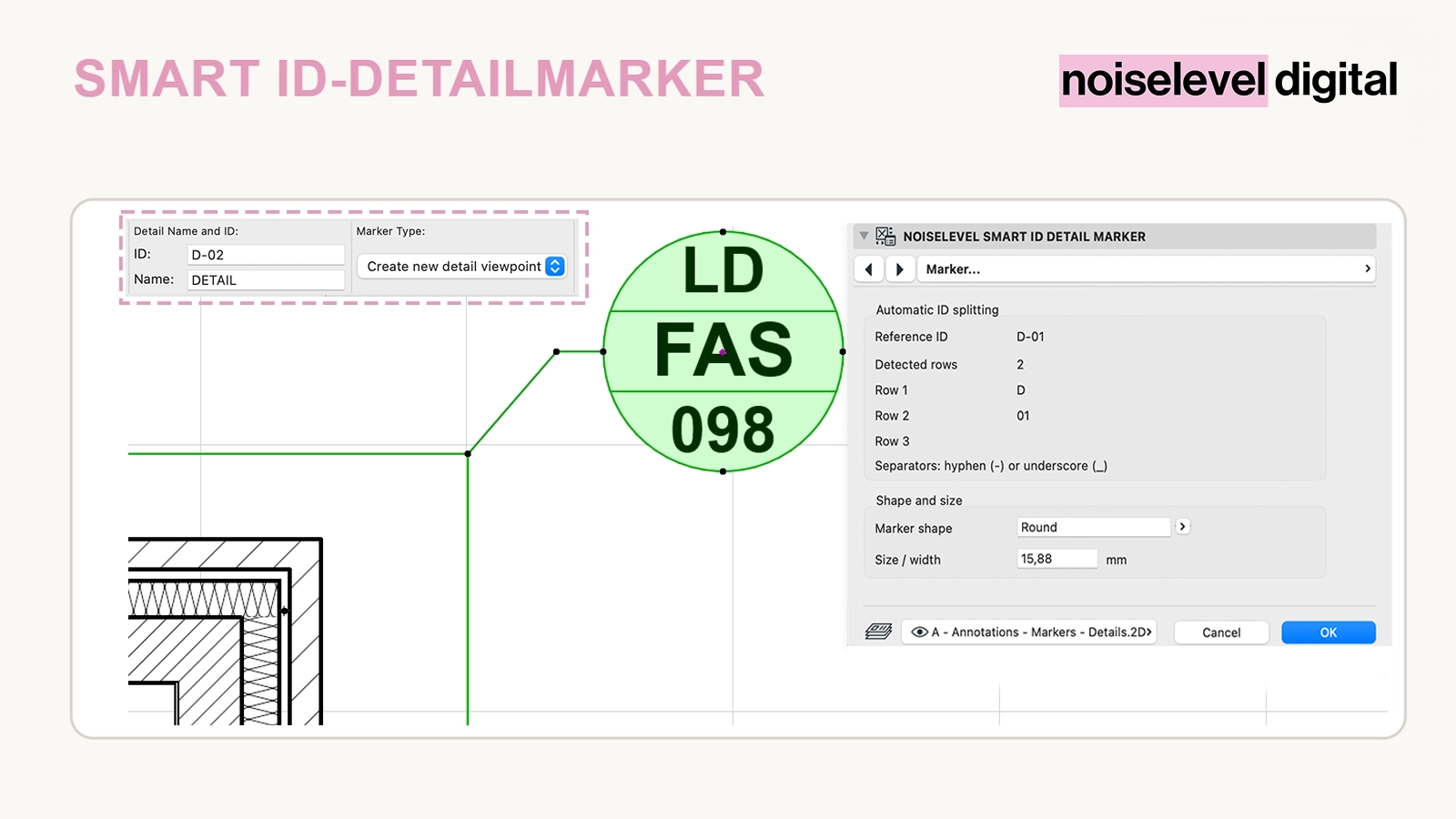
- round and square marker shapes
- adjustable size or width
- frame and connection settings
- GSM library part for Archicad® 27–28
One scheme, different IDs
“13-FAS-101” is split into three fields; “FAS-101” is automatically displayed on two lines. A single value appears in the centre without a separator line. The detail name is deliberately excluded so that the reference ID remains the sole source of identification.
How it helps in everyday office work
- existing office and project identifiers are displayed without duplicate entry
- the marker layout automatically follows the reference ID
- different detail types remain readable within the same scheme
- changes to the reference ID are applied directly
For offices with systematic detail IDs
The tool is intended for offices that name their detail views according to a defined identification scheme and want to display that structure directly in the marker head.
How it works
Unzip the download, load the GSM file and place the marker using the Detail tool. Assign the detail view reference ID according to your office standard. The tool automatically splits the ID at “-” or “_” to create one to three fields.
Technical requirements
A maximum of three visible components is supported. Reference IDs should follow a consistent scheme for reliable results. Pens, fonts, fills and line types can be adapted to the project template.
Important notes
The tool does not change the reference ID or write data back to Archicad®. It simply displays the existing ID in a structured format; the detail name is ignored.
Archicad® is a registered trademark of GRAPHISOFT SE. Noiselevel Digital is not affiliated with or endorsed by GRAPHISOFT SE.